Artificial Intelligence
Set up AI integrations
Inkdrop can integrate with AI providers to unlock AI-powered features such as the inline AI assistant and next edit suggestions. For privacy and security reasons, Inkdrop doesn't include a built-in AI provider—you bring your own API key.
These settings only cover the AI features built into the app. To let an external AI agent such as Claude Code read and write your notes, see Integrate AI agents with the MCP Server instead.
Bring your own keys
If you already have an API key for a provider like Anthropic, or a self-hosted OpenAI-compatible provider, you can add it to Inkdrop.
API keys are not stored as plain text in your settings file, but rather in your OS's secure credential storage.
Supported providers
Inkdrop supports these providers with your own API keys:
- Anthropic
- OpenAI-compatible providers (e.g., Ollama, OpenRouter)
How to configure AI providers
To configure the integration, go to Preferences > Integrations on macOS or File > Settings > Integrations on Windows and Linux.
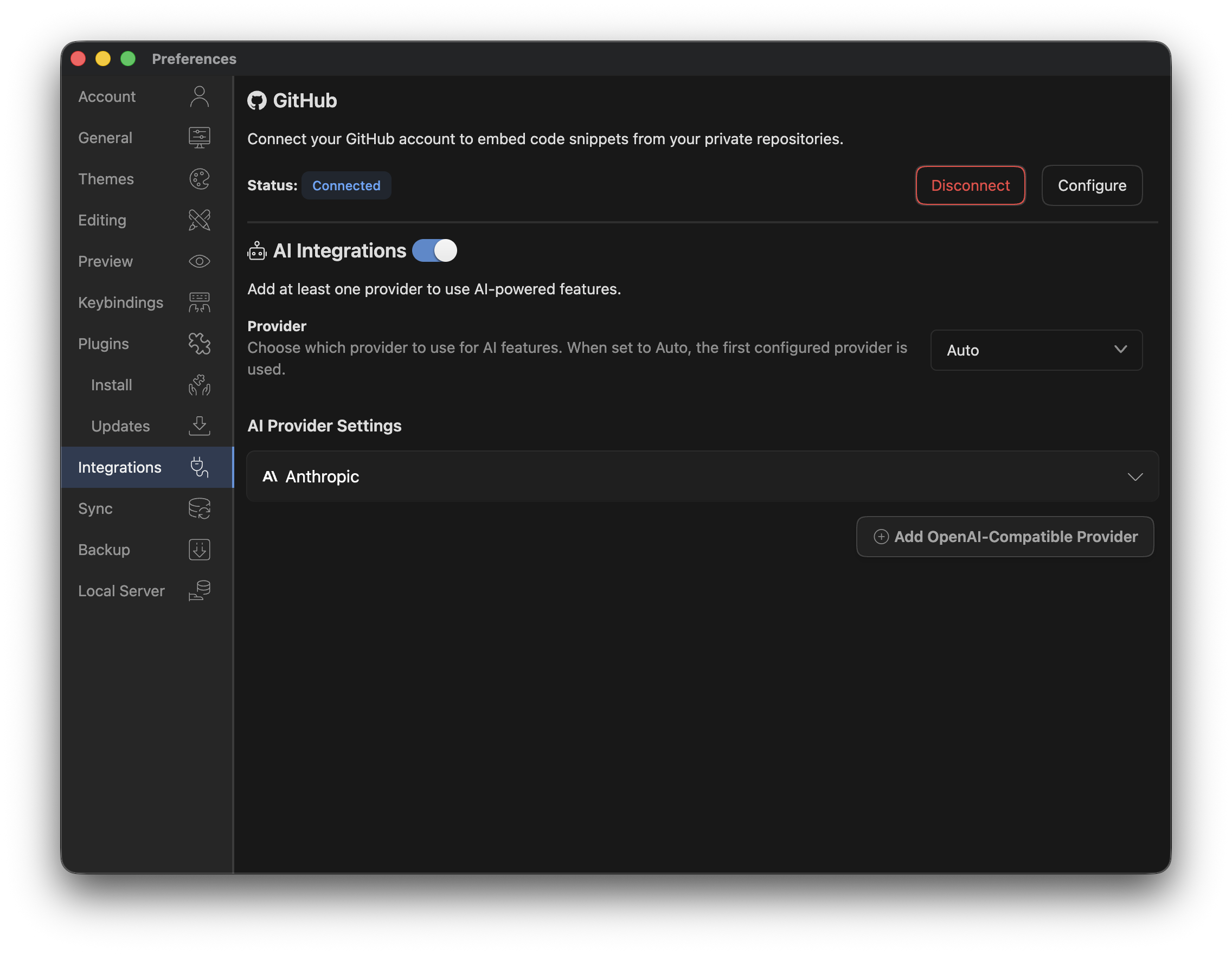
- Provider: Choose which provider to use for AI features. When set to Auto, the first configured provider is used.
Anthropic
- Sign up for Anthropic and create an API key
- Make sure that your Anthropic account has credits
- Enter your Anthropic API key
Even if you subscribe to Claude Pro, you'll still need to pay for separate API credits to access Claude through the API.
Inkdrop will also use the ANTHROPIC_API_KEY environment variable if it's defined.
Custom models
You can add custom models to the Anthropic provider by adding the following to your config.json file:
{
  "*": {
    "ai": {
      "providers": {
        "anthropic": {
          "models": [
            {
              "id": "claude-sonnet-4-7",
              "displayName": "Claude Sonnet 4.7",
              "capabilities": {
                "supportsTools": true,
                "supportsImages": true,
                "supportsThinking": true,
                "supportsStreamingTools": true,
                "maxTokens": 200_000,
                "maxOutputTokens": 64_000
              },
              "cacheConfiguration": {
                "minTotalTokens": 2048,
                "minCachedTokens": 1024,
                "shouldSpeculate": true
              }
            }
          ],
          "defaultModelId": "claude-sonnet-4-7",
          "defaultFastModelId": "claude-haiku-4-5"
        }
      }
    }
  }
}
OpenAI API Compatible
Inkdrop supports OpenAI-compatible APIs when you specify a custom baseURL and models. This is useful for connecting to other hosted services (such as Together AI or Anyscale) or to local models.
You can add a custom OpenAI-compatible model either through the UI or by editing your config.json file.
To add one through the UI, click Add OpenAI-Compatible Provider, then fill in the fields in the dialog:
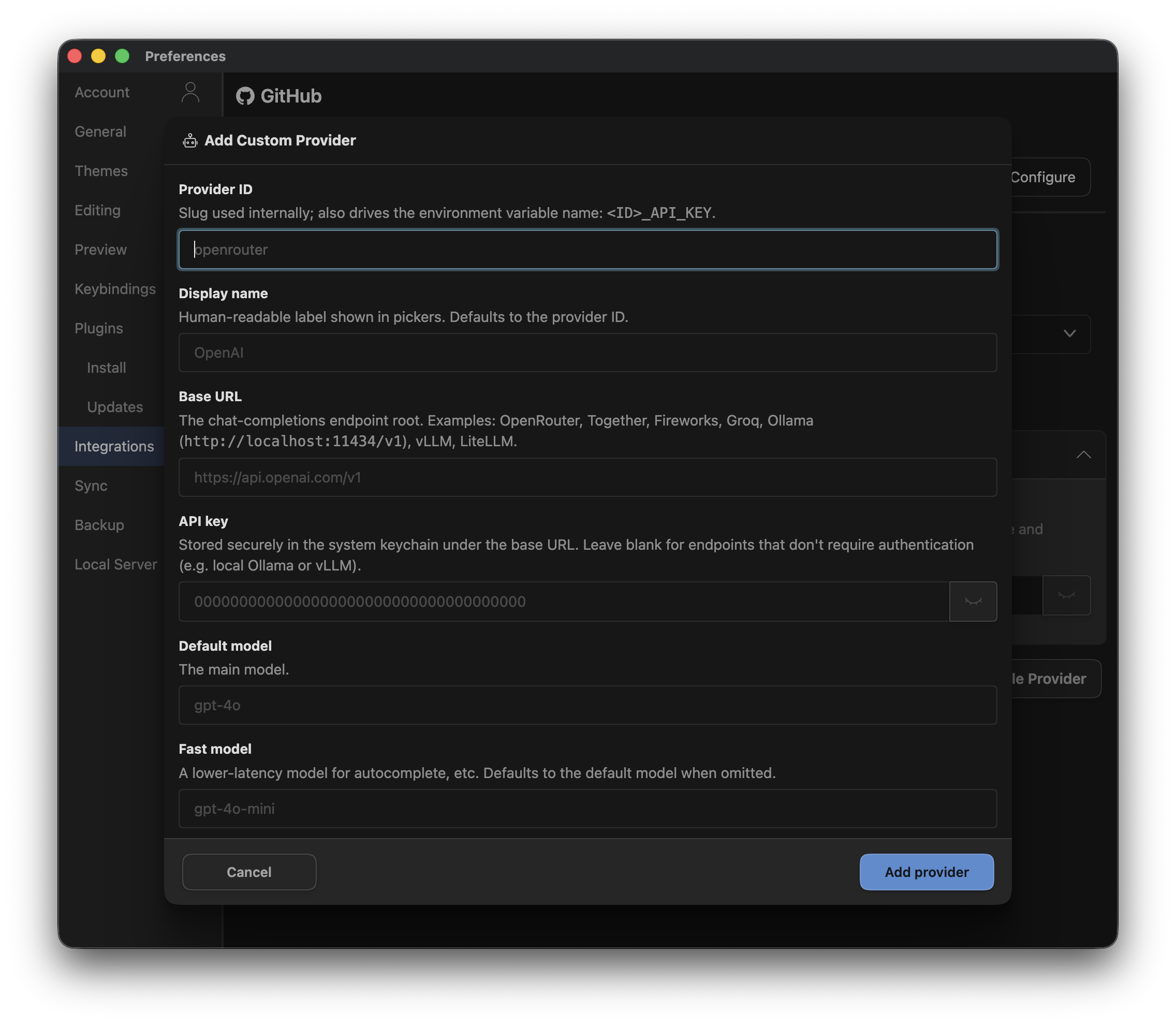
To add one through your config file, insert the following snippet under "providers":
{
  "*": {
    "ai": {
      "providers": {
        "openaiCompatible": [
          {
            "id": "ollama",
            "displayName": "Ollama",
            "baseURL": "http://localhost:11434/v1",
            "models": [
              {
                "id": "qwen3.5:9b"
              }
            ],
            "defaultModelId": "qwen3.5:9b",
            "defaultFastModelId": "qwen3.5:9b"
          }
        ]
      }
    }
  }
}
Note that LLM API keys aren't stored in your config file. Make sure the key is set either as an environment variable (<PROVIDER_NAME>_API_KEY=<your api key>) or in the UI so Inkdrop can pick it up.
Turning AI off entirely
To disable all AI features, open the Integrations settings page and click the toggle next to the AI Integrations section title. Alternatively, add the following to your config.json file:
{
  "*": {
    "ai": {
      "disabled": true
    }
  }
}
Logging
Inkdrop logs every request it makes to your AI provider. This is mainly useful for debugging your provider configuration—for example, confirming that the expected model and base URL are being used, or inspecting why a request failed.
Each AI API call is appended to a file named ai.log in your user data directory. Every line records the timestamp, provider ID, model ID, call kind, duration, and base URL, followed by either the token usage (input/output/total) on success or the error details on failure:
2026-05-28T04:35:57.520Z|ollama|qwen3.5:9b|generate|11981ms|http://localhost:11434/v1|ok|finish=length|tokens=1451/342/1793
2026-05-28T04:36:31.532Z|anthropic|claude-sonnet-4-6|generate|3111ms|https://api.anthropic.com/v1|ok|finish=stop|tokens=1559/149/1708
Logging is enabled by default. To disable it, add the following to your config.json file:
{
  "*": {
    "ai": {
      "logging": false
    }
  }
}
Get help