Artificial Intelligence
Inline AI assistant
The inline AI assistant lets you rewrite and transform text without leaving the editor.
Select some text, describe what you want in plain language (or pick a preset), and the assistant replaces your selection with the AI-generated result. It's handy for proofreading, summarizing, reformatting, generating diagrams, and any other quick edit you'd otherwise do by hand.
Getting started
The inline assistant relies on an AI provider, so you need to configure at least one before using it. See Set up AI integrations.
If no provider is configured yet, the assistant shows a prompt to set one up with a shortcut to open Preferences > Integrations.
Opening the assistant
- Select the text you want to change in the editor. (With no selection, the assistant inserts new text at the cursor instead.)
- Press Ctrl + Enter (
editor:edit-with-ai), or click the AI button in the editor toolbar. - A popover appears next to your selection.
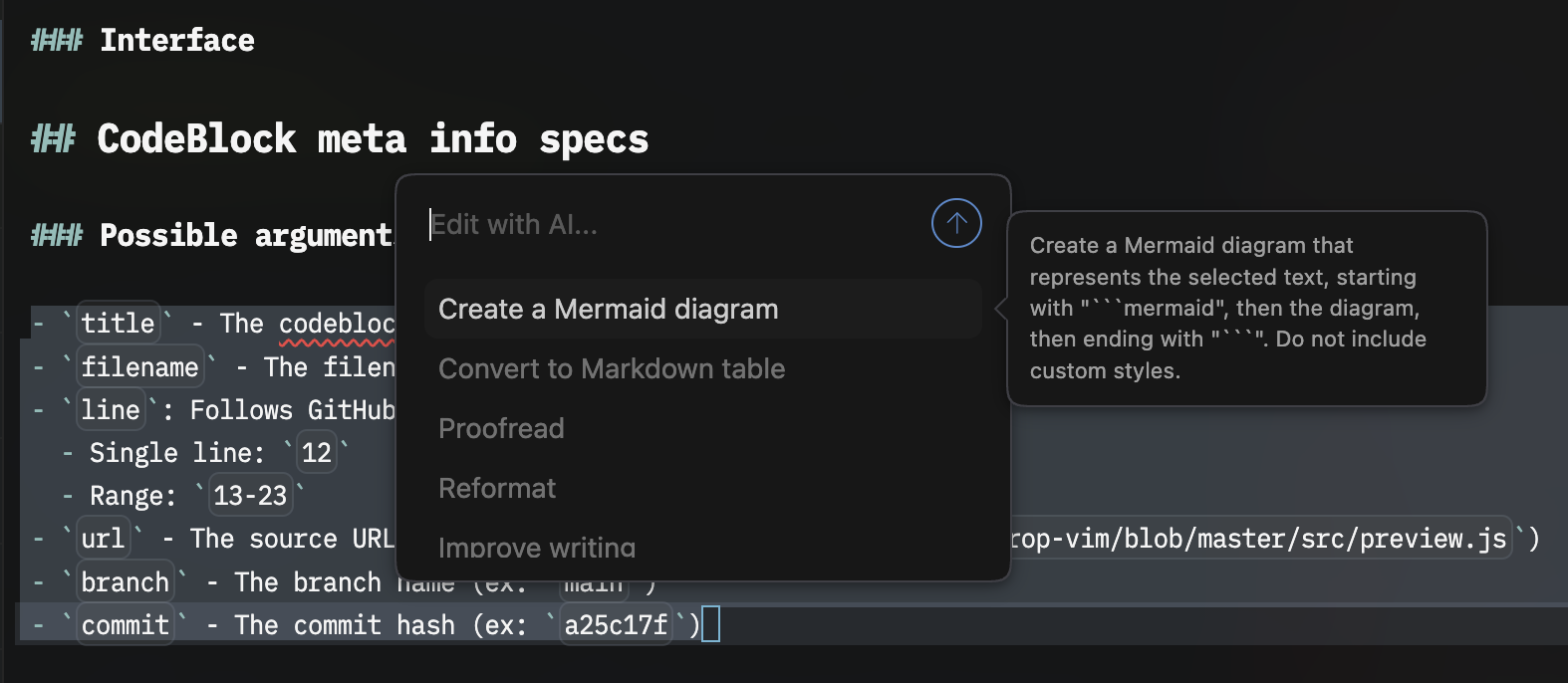
From here you can either type a custom instruction or choose a preset.
Writing a custom prompt
Type an instruction in plain language and press Cmd + Enter on macOS (Ctrl + Enter on Windows and Linux), or click the submit button, to run it. Pressing Enter on its own adds a new line to the prompt. The assistant applies the instruction to your selection and replaces it with the result. For example:
Translate this to FrenchMake this more conciseFix the grammar and tighten the wordingRewrite this as a numbered list of stepsExplain this code in a comment above it
To dismiss the popover without making a change, press Esc or click elsewhere.
Using presets
Presets are saved prompts for common edits. When you open the assistant, the preset list appears below the input. As you type, the list filters to matching presets; use the ↑ / ↓ arrow keys to highlight one and press Enter to run it. Hovering over (or highlighting) a preset shows the full prompt it will send.
If a preset is highlighted when you submit, it takes precedence over any text you've typed.
Inkdrop ships with these built-in presets:
| Preset | What it does |
|---|---|
| Create a Mermaid diagram | Generates a Mermaid diagram representing the selected text. |
| Convert to Markdown table | Turns the selection into a Markdown table with inferred column headers. |
| Proofread | Corrects spelling, grammar, and punctuation while preserving the meaning. |
| Reformat | Cleans up Markdown formatting without changing the wording. |
| Improve writing | Improves clarity, flow, and word choice while keeping the meaning. |
| Summarize | Condenses the selection into a concise summary. |
| Convert to bullet list | Rewrites the selection as a Markdown bulleted list. |
| Convert to task list | Rewrites the selection as a Markdown task list (- [ ] items). |
| Add headings | Reorganizes the selection with appropriate Markdown headings. |
How the assistant uses context
The assistant sends the surrounding text along with your selection so the model can edit in context. It includes the whole note when it's short enough; for longer notes, it sends a window of text around the selection. The note title is included as well.
The model is instructed to rewrite only your selected text and to preserve the surrounding Markdown style and indentation. It returns just the replacement text—no explanations or extra code fences—and leaves the selection unchanged if the instruction can't be applied. Edits run at a low temperature, so results stay faithful to your text rather than improvising.
Requests use your default provider and model. While a request is running, the popover shows a progress indicator; if the provider returns an error, the popover shows the error message so you can adjust and retry.
Get help