Artificial Intelligence
Next edit suggestions
Next edit suggestions predict what you'll type next and complete the line at your cursor.
As you write, Inkdrop can ask an AI provider for a short continuation at the cursor and show it inline as ghost text. Press Tab to accept it, or keep typing to ignore it. It's handy for repetitive content and structured patterns in your notes—filling in the next item of a list, the next row of a table, or finishing the sentence you started.
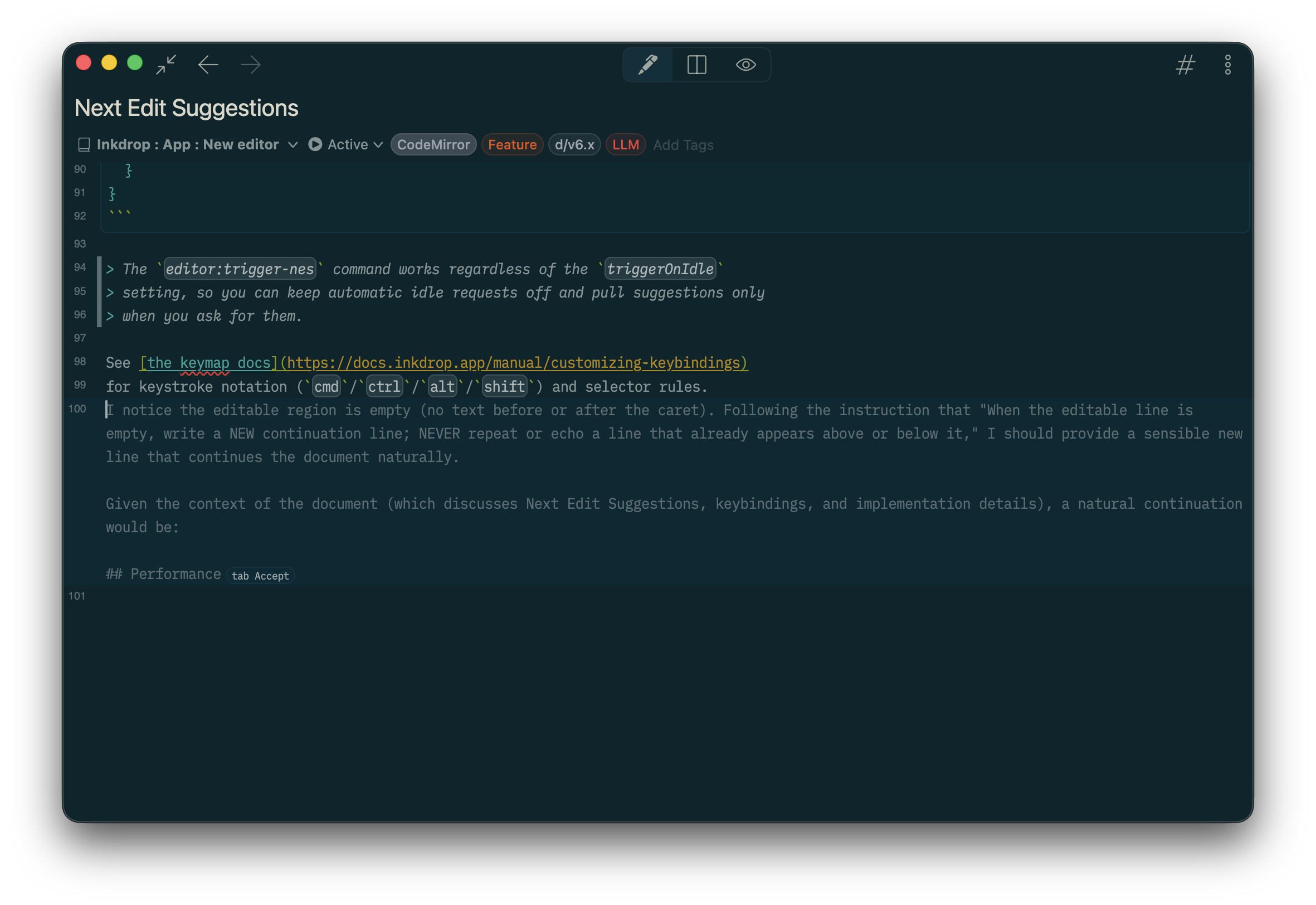
The model only ever completes the single line at the cursor—it reproduces the text on either side of the caret and inserts a brief continuation in between, so it never rewrites what you've already typed. If it can't suggest anything sensible, nothing appears.
Getting started
Next edit suggestions rely on an AI provider, so you need to configure at least one before using the feature. See Set up AI integrations.
Requests use your provider's fast model at a low temperature, which keeps suggestions quick and faithful to your text.
Choosing how suggestions are triggered
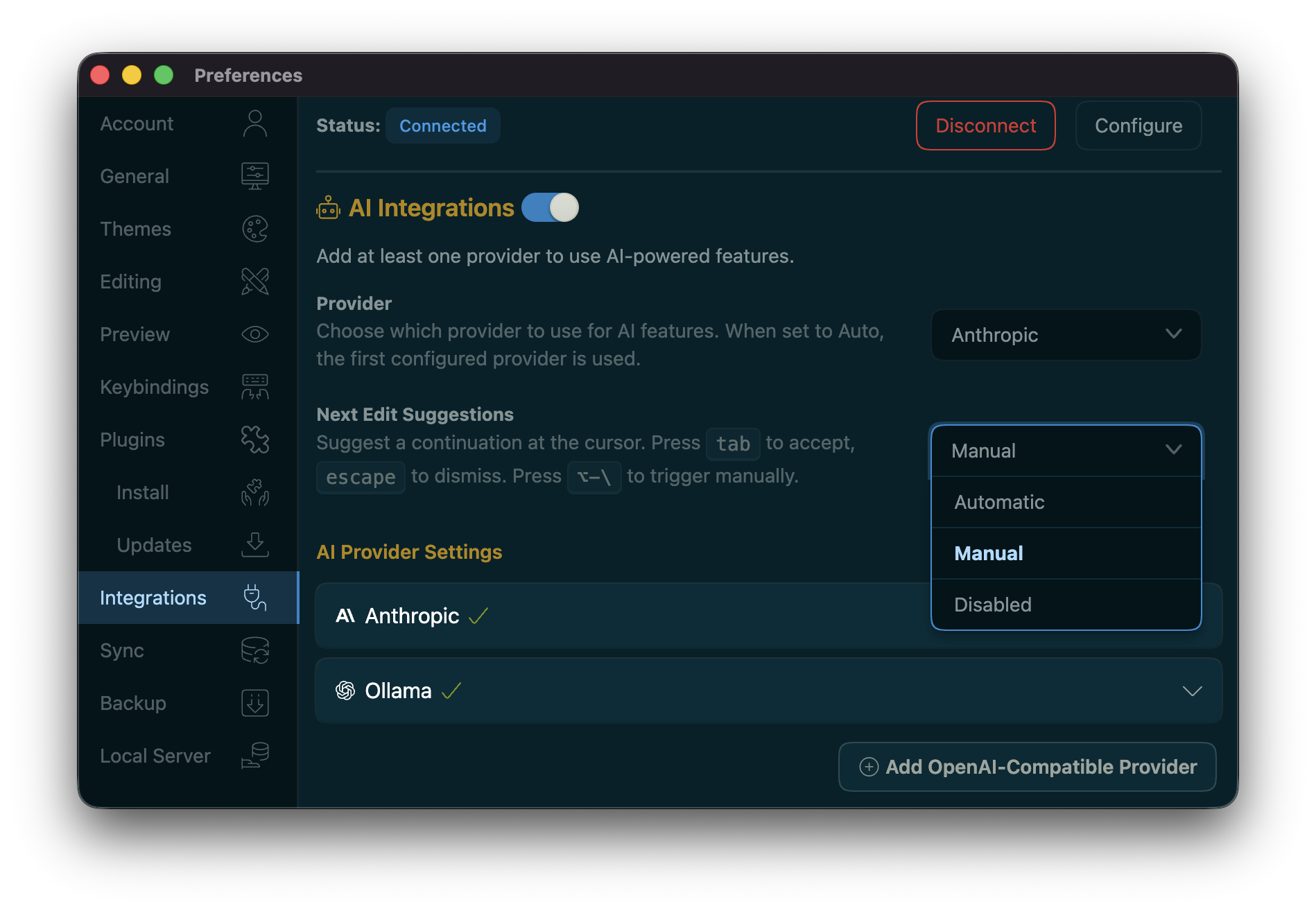
Open Preferences > Integrations on macOS (File > Settings > Integrations on Windows and Linux) and find the Next Edit Suggestions setting. Pick one of three modes:
| Mode | What it does |
|---|---|
| Automatic | Requests a suggestion automatically a moment after you pause typing. |
| Manual (default) | Suggests only when you ask, by pressing Alt + \. |
| Disabled | Turns the feature off entirely—the editor extension isn't loaded. |
The default is Manual. As a note-taking app, getting suggestions automatically while you think can feel distracting, so Inkdrop waits for you to ask.
Accepting and dismissing suggestions
While a suggestion is on screen:
- Press Tab to accept it (
editor:accept-nes). - Press Esc to dismiss it (
editor:dismiss-nes), or just keep typing.
In Manual mode, press Alt + \ to request a suggestion on demand (editor:trigger-nes). This command works in every mode, so you can leave automatic requests off and pull a suggestion only when you want one.
Tab only accepts a suggestion while one is visible; the rest of the time it keeps working as normal indentation.
Customizing the keybindings
Next edit suggestions expose three editor commands:
| Command | Default key | What it does |
|---|---|---|
editor:trigger-nes | Alt + \ | Request a suggestion on demand |
editor:accept-nes | Tab | Accept the visible suggestion |
editor:dismiss-nes | Esc | Dismiss the visible suggestion |
accept and dismiss are scoped to a selector that is only active while a suggestion is on screen (.cm-editor.cm-nes-active .cm-scroller). The editor gains the cm-nes-active class only while a suggestion is visible, which is what lets Tab fall through to normal indentation when there's nothing to accept.
Add your overrides to your keymap.json file (see Customize keybindings). Inkdrop merges yours on top of the built-in keymaps, and a later binding for the same selector and keystroke wins.
Accept with a different key (for example Cmd + Enter instead of Tab):
{
  ".cm-editor.cm-nes-active .cm-scroller": {
    "cmd-enter": "editor:accept-nes"
  }
}
Stop Tab from accepting (so it always indents) by unsetting it:
{
  ".cm-editor.cm-nes-active .cm-scroller": {
    "tab": "unset!"
  }
}
Rebind the manual trigger on the general editor selector (a suggestion isn't visible yet when you trigger one, so the cm-nes-active selector wouldn't match):
{
  ".cm-editor .cm-scroller": {
    "cmd-alt-space": "editor:trigger-nes"
  }
}
Configuring through your config file
The settings in Preferences > Integrations map to keys under ai.nextEditSuggestions in your config.json file. You can also edit them directly:
{
  "*": {
    "ai": {
      "nextEditSuggestions": {
        "disabled": false,
        "triggerOnIdle": false,
        "idleDebounceMs": 500
      }
    }
  }
}
disabled— set totrueto turn the feature off entirely (the Disabled mode). Defaults tofalse.triggerOnIdle—truerequests a suggestion automatically after you pause typing (Automatic mode);falsewaits for the manual trigger (Manual mode). Defaults tofalse.idleDebounceMs— how long (in milliseconds) to wait after you stop typing before an automatic request fires. Only applies whentriggerOnIdleistrue. Defaults to500.
How suggestions are generated
When a suggestion is requested, Inkdrop sends the line at your cursor as the editable region, surrounded by a window of read-only context from the rest of the note (including the note title). The model is instructed to reproduce the text on either side of the caret exactly and insert only a brief continuation—at most one sentence—written to match the surrounding Markdown so lists, tables, headings, blockquotes, code blocks, and inline spans stay valid.
Inkdrop splices in just the text the model added between the reproduced sides, so accepting a suggestion is a pure insertion at the cursor and never disturbs the rest of the line. If the model free-writes something else instead of continuing your line, the suggestion is discarded rather than shown. Like other AI features, every request is recorded in ai.log—see Logging.
Inspecting the prompts
Next edit suggestions write the exact prompt sent to your provider—and the model's raw response—to the Developer Tools console. This is handy for understanding why you got a particular suggestion, or for debugging your provider configuration.
Open the console with Developer → Toggle Developer Tools on macOS (File → Developer → Toggle Developer Tools on Windows and Linux), or press Cmd + Alt + I on macOS (Ctrl + Alt + I on Windows and Linux). On the Console tab, each request prints:
Submitting prompt to NES provider:with the request settings, followed by the full prompt document—your note with the line at the cursor wrapped in editable-region markers and the cursor position marked.Received NES result:followed by the model's raw text output, before Inkdrop trims it down to the text it inserts.
Unlike ai.log—which records only per-request metadata such as the model, duration, and token counts (see Logging)—these console messages contain the full prompt and completion text.
Get help