Mobile app
Inkdrop for mobile
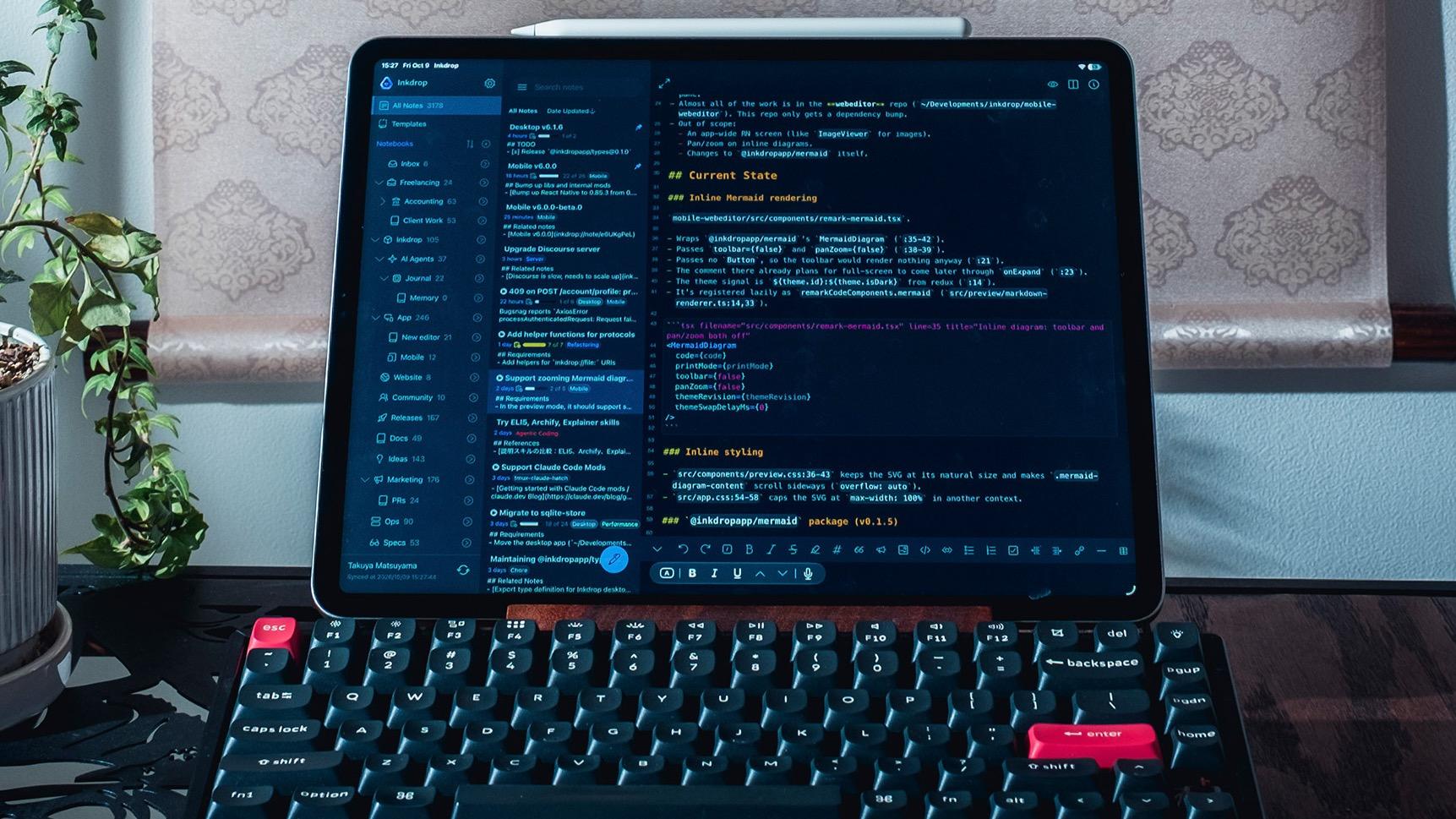
Inkdrop is available for iPhone, iPad and Android devices. Your notes sync end-to-end encrypted with the desktop app, so you can read and write them anywhere.
Requirements
- iOS 17.5 or later
- Android 14.0 or later
Install the app
- Open the download page on your device.
- Select App Store or Google Play and install the app.
- Open the app and log in with your Inkdrop account.
If you don't have an account yet, sign up first.
The app starts syncing your notes right after you log in. You can keep using it while the first sync is running.
Two-factor authentication
If you have two-factor authentication enabled, the app asks for a one-time passcode when you log in.
Find your way around
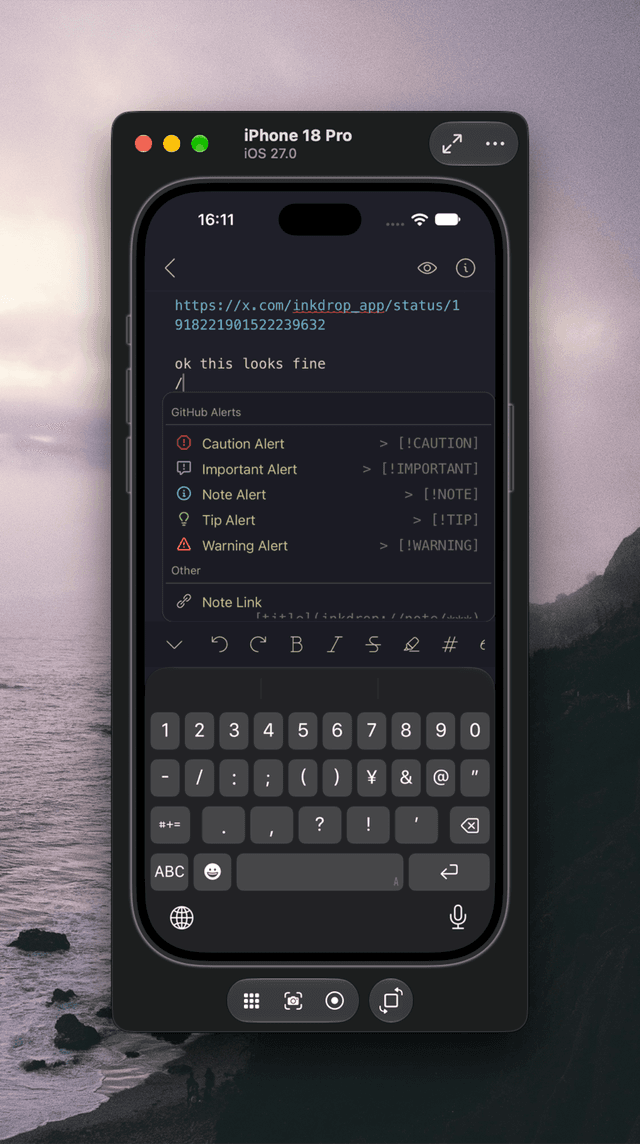
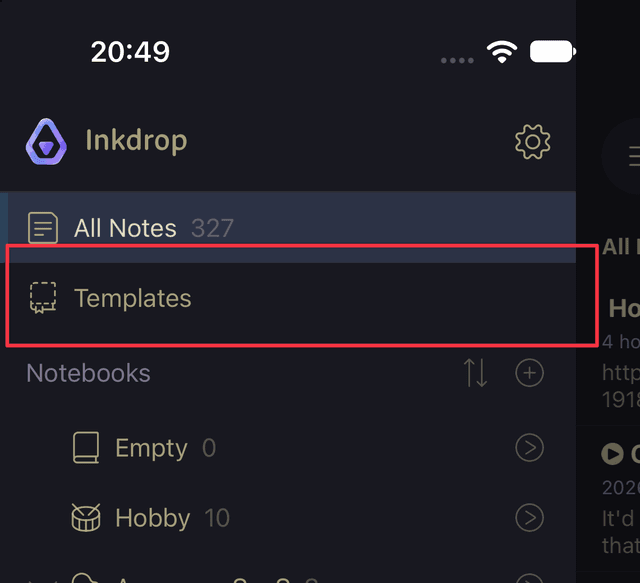
The app has the same three parts as the desktop app:
- Sidebar: Lists All Notes, Templates, your notebooks, statuses, tags and the trash. Settings is here, too.
- Note list: Lists the notes of the notebook, status or tag you selected in the sidebar.
- Editor: Opens when you select a note. You can switch between the editor and the preview.
On a phone, you see one part at a time. On a tablet, they sit side by side, and the editor can show the preview next to it.
The app opens straight into the note you were editing last time.
What you can do on mobile
The mobile app runs the same editor and Markdown renderer as the desktop app, so notes look the same on both.
| Topic | What it covers |
|---|---|
| Write notes on mobile | The toolbar, slash commands, note links, table editing and editor settings |
| Use a hardware keyboard | Keyboard shortcuts, Vim keybindings and multiple cursors |
| Widgets, Siri and Spotlight | Home screen widgets, Siri, Spotlight, background sync and the app icon menu |
| Clip web pages | Save a web page or a link from the share sheet |
| Notebook-specific view | Show only the sub-notebooks, statuses and tags of a notebook |
| Revision history | Restore a previous revision of a note |
| Sync with your own server | Connect the mobile app to a custom sync server |
Change the theme
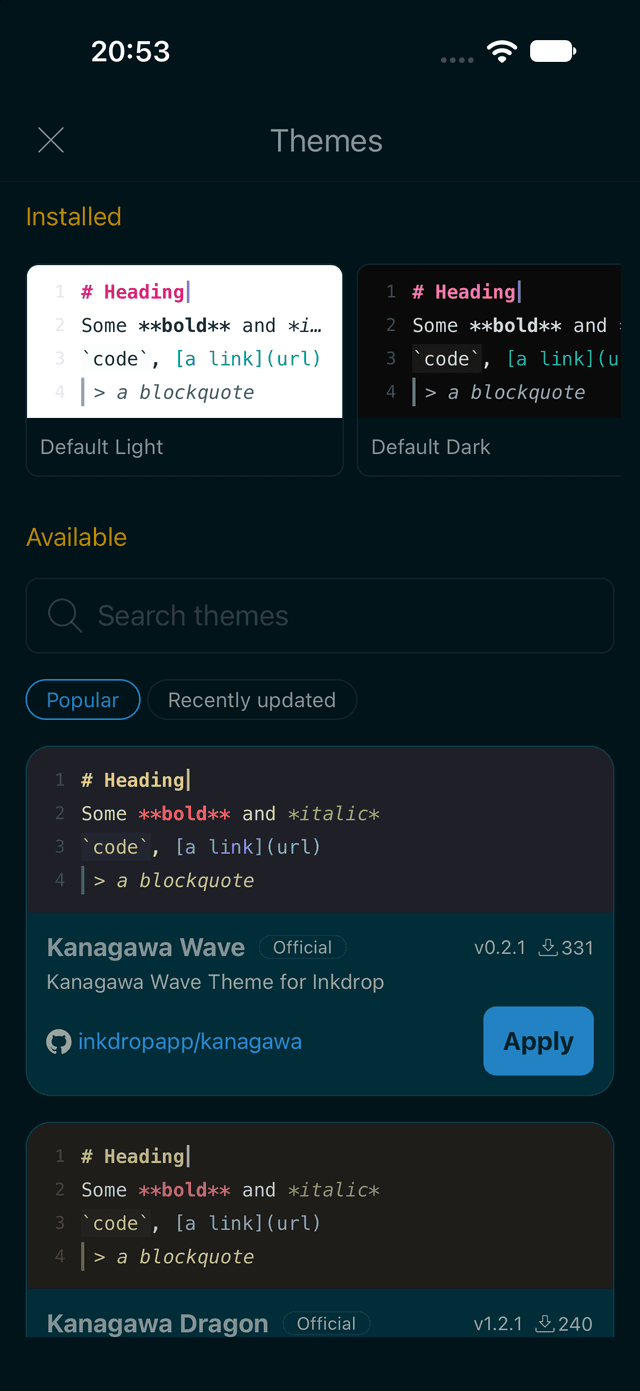
- Open the sidebar and select Settings.
- Select UI Theme.
The Themes screen lists the themes from the Inkdrop plugin registry, such as Nord, Solarized, Catppuccin, Gruvbox and Kanagawa. - Select a theme to preview it, and install it.
Installed themes work offline and update automatically. The editor, the preview, code blocks and the home screen widgets all follow the theme.
Differences from the desktop app
- Plugins: Plugins are not supported on mobile, because Apple prohibits third-party code execution on iOS. Themes are the exception: you can install them from the Themes screen.
- Revisions: Only the latest revision of a note syncs between devices. Older revisions stay on the device where they were made. See Restore previous revisions of note.
Get help