Mobile app
Write notes on mobile
The mobile editor runs on the same engine as the desktop editor. This page covers the parts that work differently on a touch screen.
For the Markdown syntax itself, see Basic writing and formatting syntax.
The toolbar
A toolbar sits at the bottom of the editor. It changes with what you are doing.
While reading
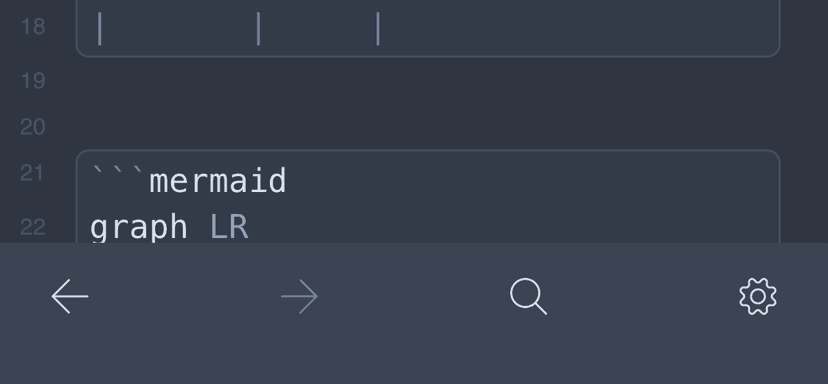
When the keyboard is closed, the toolbar has these buttons:
- Back and Forward: Go to the note you viewed before or after this one.
- Search: Find text in the note.
- Settings: Open Editor Settings.
While editing
When the keyboard is open, the toolbar shows formatting buttons. Scroll it sideways to see them all:
- Bold, italic, strikethrough and highlight
- Heading and blockquote
- GitHub alert and image
- Inline code and code block
- Bullet list, numbered list and task list
- Indent and outdent
- Link, horizontal rule and table
- Undo and redo
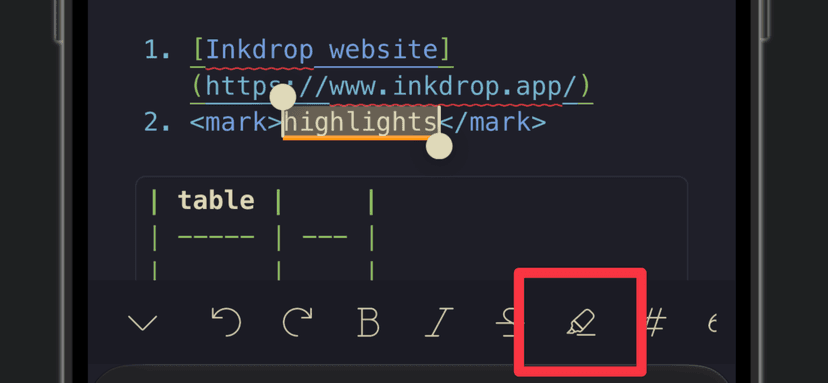
The leftmost button closes the keyboard.
Open a link
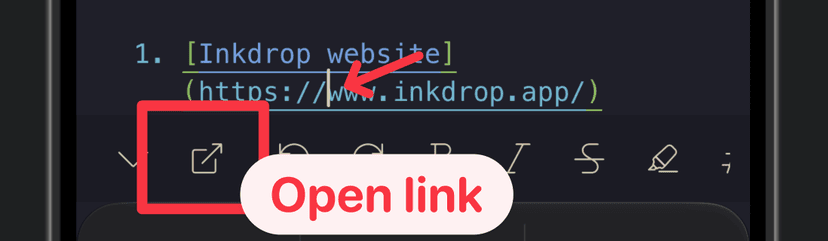
When the cursor is on a link, an Open Link button appears on the toolbar. It opens a web page in your browser, or opens the linked note.
Edit a table
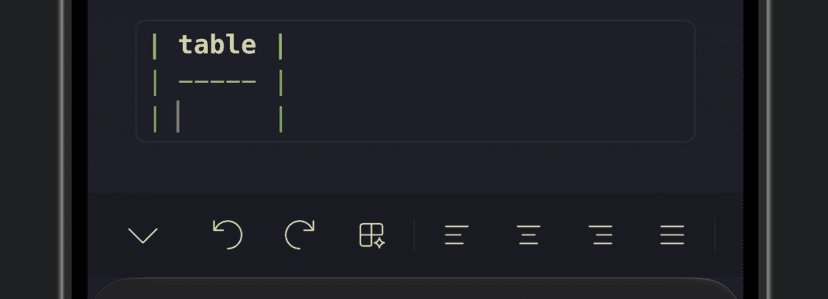
When the cursor is in a Markdown table, the toolbar switches to table buttons:
- Format the table
- Align a column to the left, center or right, or clear its alignment
- Move a row up or down, or a column left or right
- Add a row or a column
- Delete a row or a column
Slash commands
Slash commands insert Markdown elements without typing their syntax.
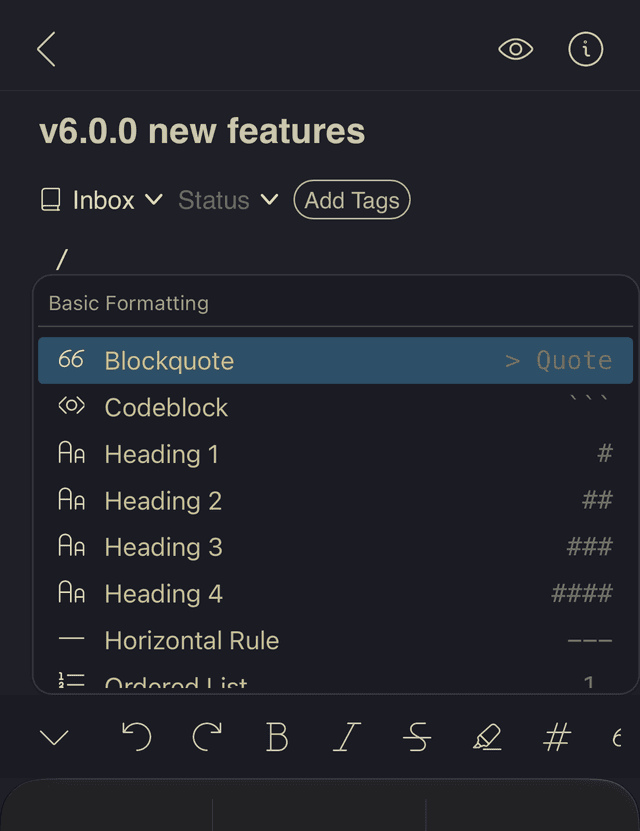
Type
/at the start of a line, or tap the / button on the toolbar.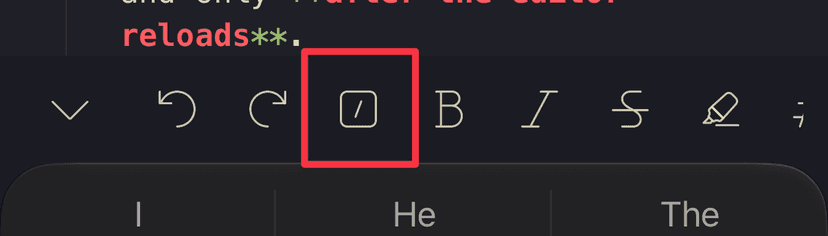
Keep typing to filter the commands.
Tap a command to insert it.
The following commands are available:
- Heading 1 to 4
- Horizontal Rule
- Unordered List, Ordered List and Task List
- Codeblock
- Table
- Blockquote
- Note, Tip, Important, Warning and Caution Alert
- Note Link
Link to another note
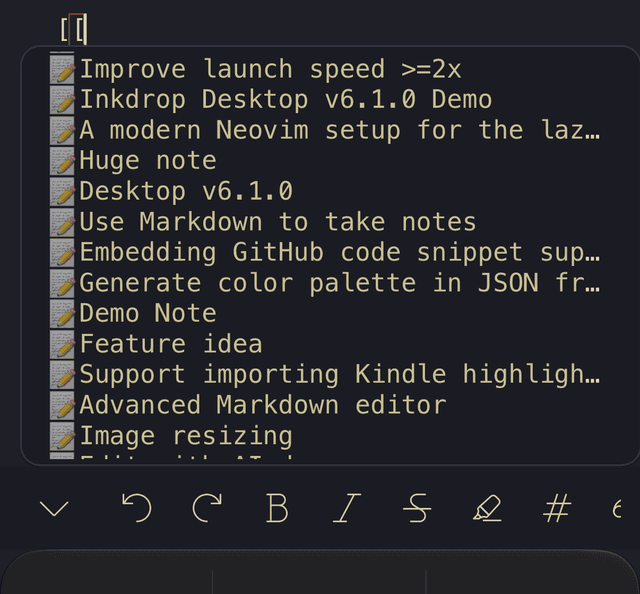
- Type
[[in the editor, or use the Note Link slash command.
A note picker opens with your recent notes. - Type to search notes by title. Each word is matched separately, so
foo barfinds titles that contain both words. - Tap a note to insert a link to it.
You can also create a new note from the picker and link to it right away. On iPad, the picker shows a preview of the selected note.
Link to a line or a heading
A note link can point to a place inside a note:
| Link | Points to |
|---|---|
inkdrop://note/<ID>#L5 | A line |
inkdrop://note/<ID>#L5-L8 | A range of lines |
inkdrop://note/<ID>#<heading> | A heading |
Opening such a link takes you to that place, in the editor and in the preview.
To copy one:
- Turn on Line Numbers in Editor Settings.
- Long-press a line number.
- Select Copy Note Link to Line or Copy Note Link to Section.
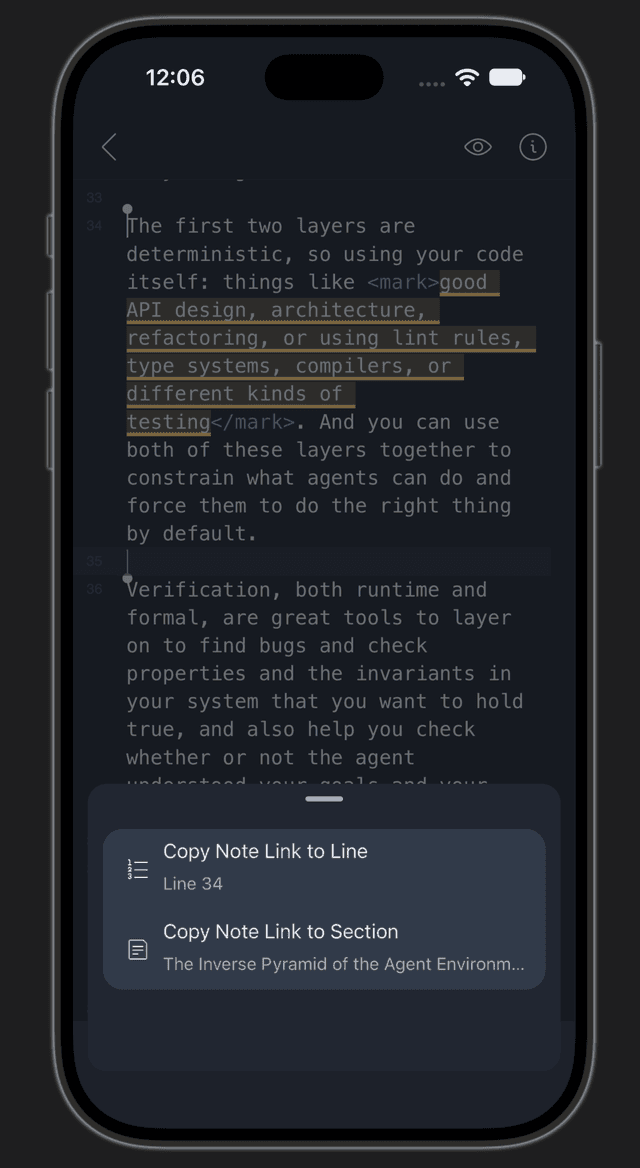
A link to a heading of the same note, such as [Setup](#setup), jumps to that heading.
Diagrams and math in the preview
Mermaid diagrams and math equations render the same as on desktop. Tap a Mermaid diagram in the preview to expand it to full screen, where you can zoom and pan.
Editor settings
To open Editor Settings, close the keyboard and tap the Settings button on the toolbar.
Editing
| Setting | What it does |
|---|---|
| Font Size | The font size of the editor |
| Font Family | The font of the editor |
| Line Numbers | Shows line numbers |
| Line Height | The line height of the editor |
| Cursor Scroll Margin | Extra space in pixels to keep above and below the cursor near the edges of the view |
| Line Wrapping | See Line wrapping |
| Highlight Active Line | Highlights the line the cursor is on |
| Unordered List Bullet | The character for bullet lists: asterisk (*), dash (-) or plus (+) |
| Inline Image Widgets | Shows images in the editor |
| Auto-close Brackets and Quotes | Inserts the closing bracket, quote or backtick when you type the opening one |
| Vim Keybindings | See Use a hardware keyboard |
Preview
| Setting | What it does |
|---|---|
| Font Size | The font size of the preview |
| Newline to Break | Renders a single newline as a line break |
Line wrapping
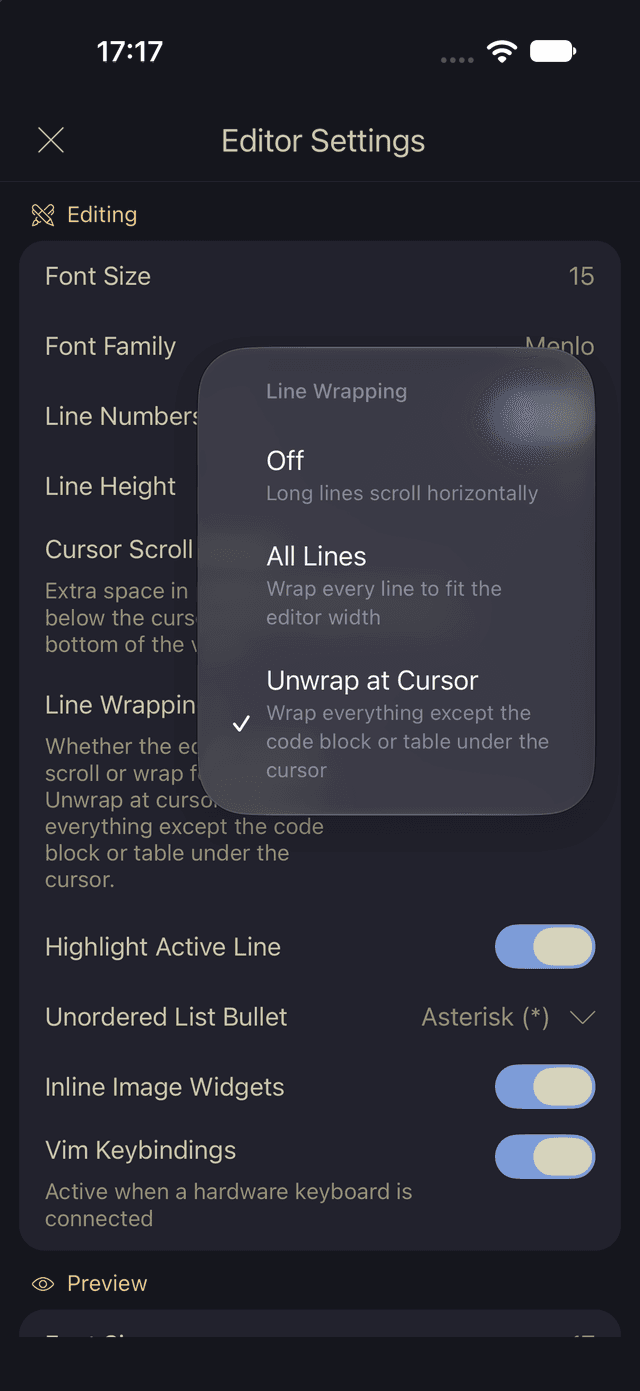
Line Wrapping has three options:
- Off: Long lines scroll horizontally.
- All Lines: Every line wraps to fit the editor width.
- Unwrap at Cursor: Everything wraps except the code block or table under the cursor. This is the default.
Wide tables and code blocks are hard to read when each row wraps across several lines. With Unwrap at Cursor, the block stops wrapping and scrolls horizontally while the cursor is in it, and wraps again when the cursor leaves.
Get help