Mobile app
Use a hardware keyboard on mobile
With a hardware keyboard connected to your iPad, iPhone or Android device, you can use the same shortcuts as the desktop app.
Keyboard shortcuts
The shortcuts work on any screen of the app. The ones marked "tablet" are for tablets only.
| Shortcut | Action |
|---|---|
| Command+N | New note |
| Command+S | Save the note |
| Command+/ | Toggle the sidebar |
| Command+E | Toggle the preview |
| Command+P | Toggle side-by-side mode (tablet) |
| Shift+Command+D | Toggle Distraction Free Mode (tablet) |
| Shift+Command+] / Shift+Command+[ | Open the next / previous note in the list |
| Shift+Command+F | Search notes |
| Shift+Command+P | Print the note |
- iPad: The shortcuts are listed in the menu bar, and in the overlay that appears when you hold Command.
- Android: Use Ctrl in place of Command. Android reserves the Windows / Command key for system shortcuts.
Vim keybindings
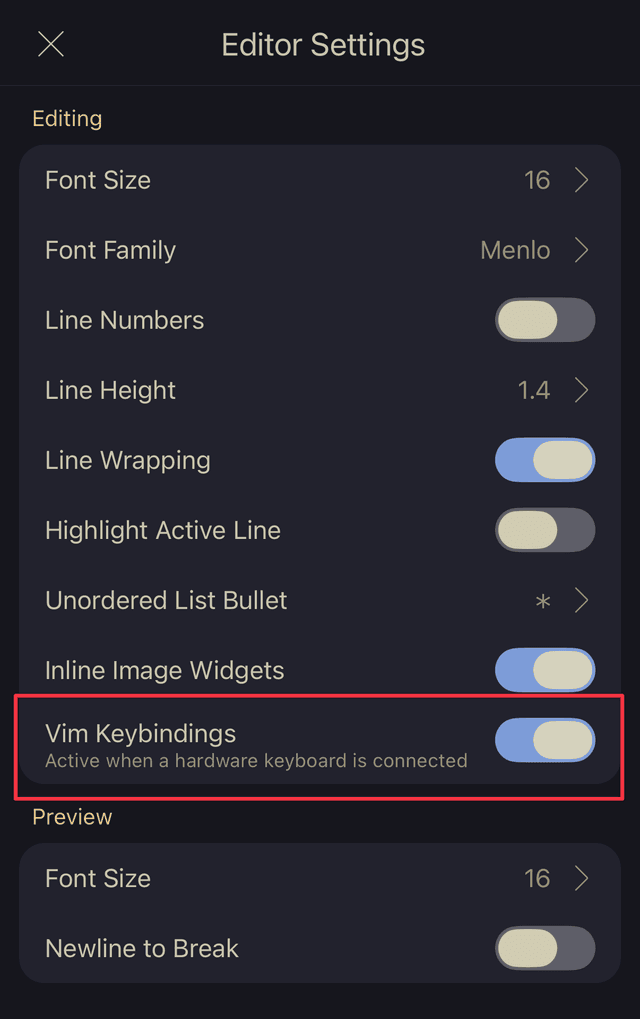
- Open a note and close the software keyboard.
- Tap the Settings button on the toolbar to open Editor Settings.
- Turn on Vim Keybindings.
Vim keybindings are active only while a hardware keyboard is connected. With the software keyboard, the editor works as usual.
Multiple cursors
Multiple cursors are supported with a hardware keyboard, as in the desktop editor. Formatting such as bold and italic applies to every selection at once.
Get help
Got any questions about this page? Feel free to ask them on the user forum here.