Mobile app
Widgets, Siri and Spotlight
The mobile app lets the system reach your notes without opening the app: on the home screen, in Spotlight, and through Siri.
Home screen widgets
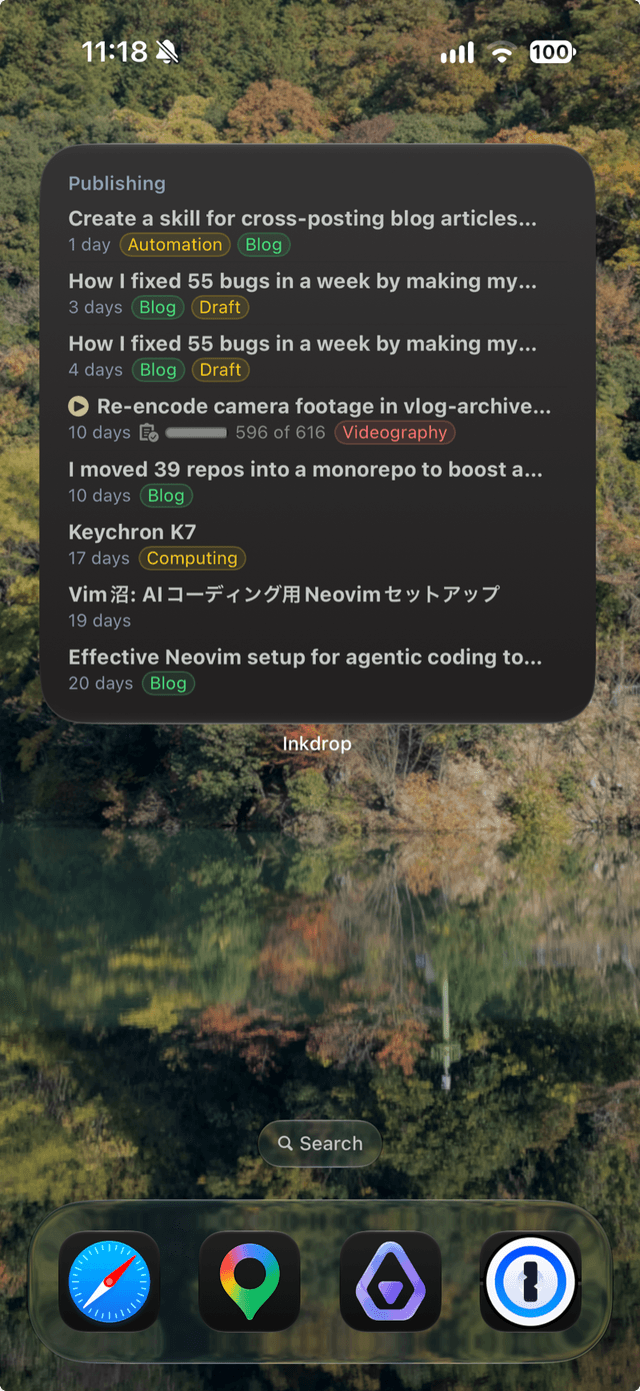
Widgets are available on both iOS and Android. There are two of them:
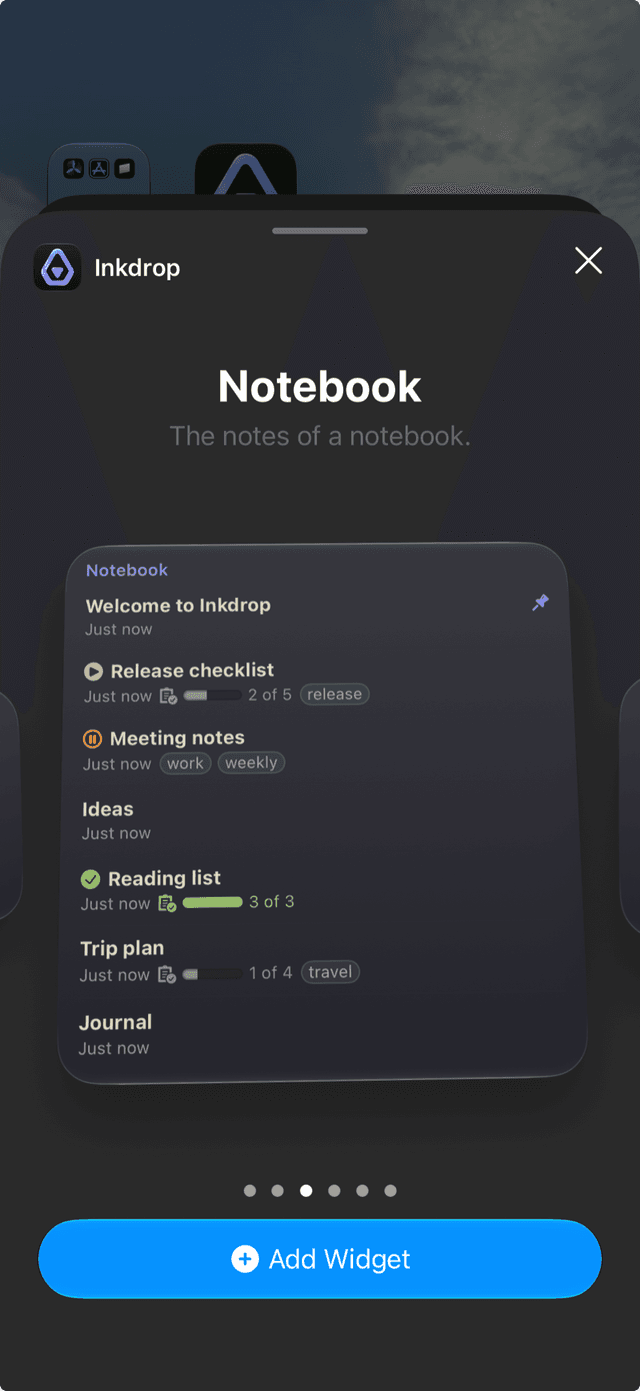
- Notebook: Lists the notes of a notebook you pick.
- Pinned Notes: Lists your pinned notes.
Each row shows the status, the title, when the note was updated, the task progress and the tags, like the note list in the app. Tap a note to open it in the app. The widgets use the colors of your app theme, including the themes you installed.
Add a widget
- Long-press the home screen.
- Open the widget list and select Inkdrop.
- Select the Notebook or the Pinned Notes widget and add it.
Pick the notebook to show
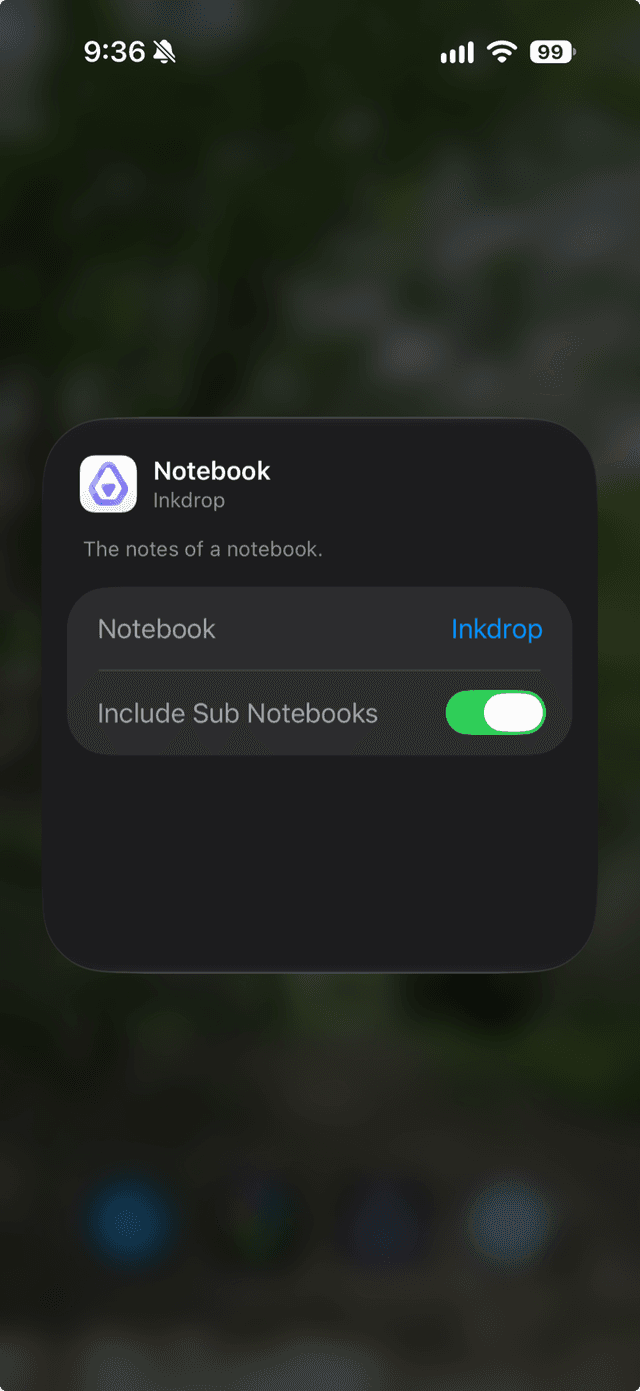
- Open the settings of the Notebook widget.
- Select the notebook.
- To list the notes of its sub-notebooks as well, turn on Include Sub Notebooks. It is off by default.
Spotlight (iOS)
Your notes show up in Spotlight.
- Swipe down on the home screen.
- Search by a note's title, its tags or its text.
- Tap a result to open the note in Inkdrop.
Siri (iOS)
On iOS 27 or later, Siri can use your notes. Ask it to find notes about a topic, to summarize a note, or to open one.
Privacy
The search index for Spotlight and Siri stays on your device. It can't be read while the device is locked, and it is cleared when you log out. If you don't want your notes in Spotlight or Siri, turn it off for Inkdrop in the iOS Settings.
Background sync
The app syncs from time to time while it is closed, on iOS and Android. Your notes are already up to date when you open the app, and the widgets and Spotlight stay fresh as well.
The system decides when an app may run in the background, based on how often you use it, the battery and the network. So the sync doesn't happen at fixed times.
Create a note from the app icon
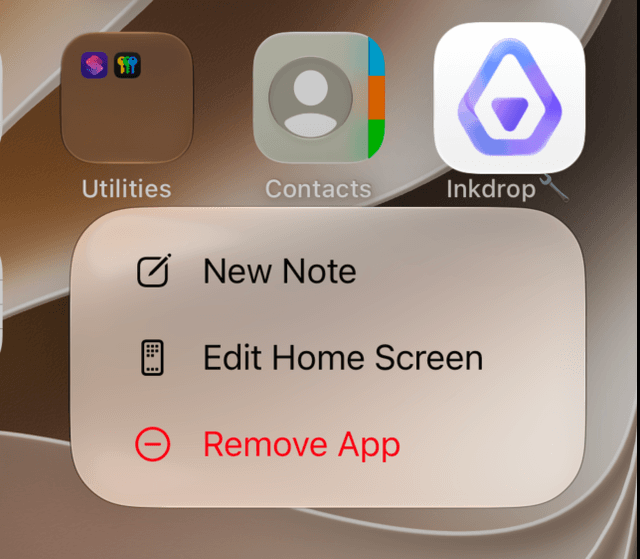
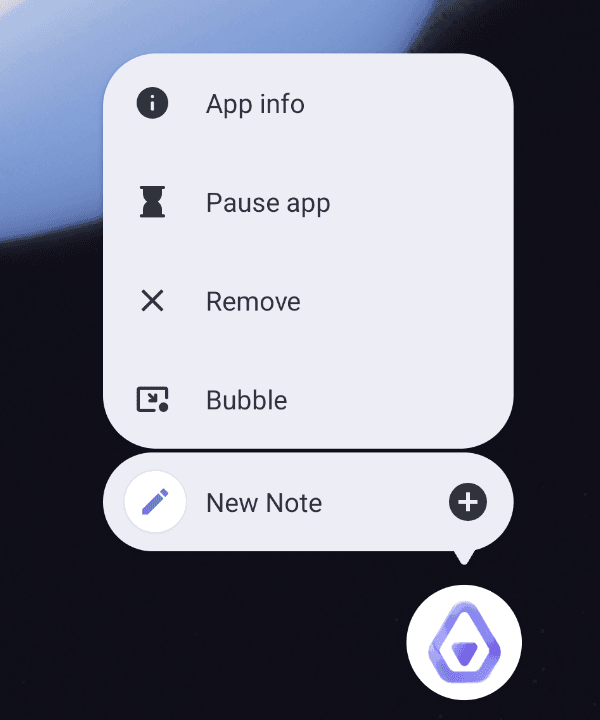
Long-press the app icon and select New Note to start writing right away.
Get help